Deep Learning on Geek Cloud
Context (title): Deep Learning on Jike Cloud
Recently, I was working on an image-related deep learning task assigned by my teacher. After debugging the code, I realized my laptop’s memory (8GB) wasn’t sufficient. I then discovered a very useful deep learning cloud service platform, Jike Cloud: http://www.jikecloud.net/
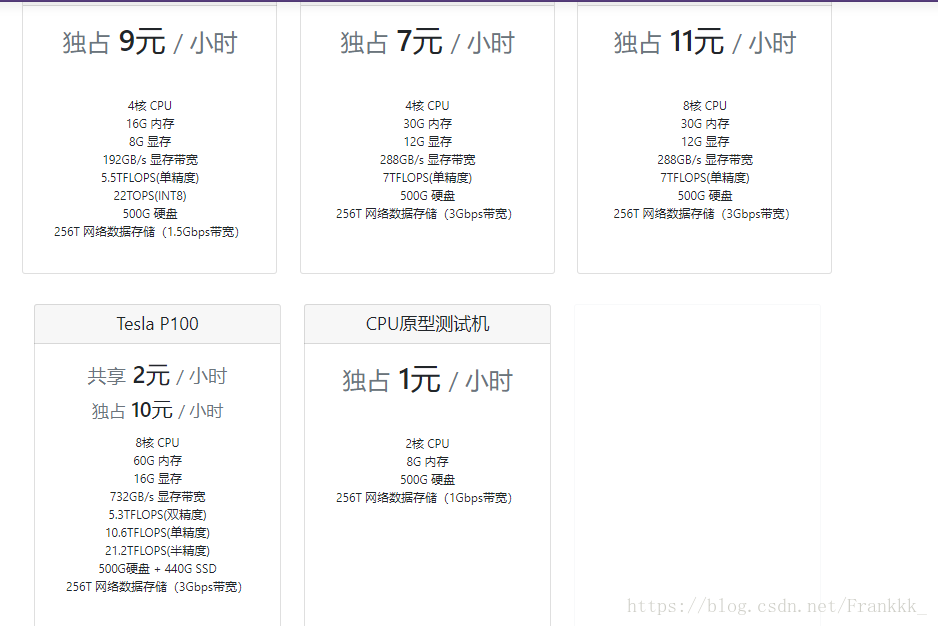
The most convenient feature of this platform is that it comes with many built-in computing frameworks. Setting up various environments can be quite a hassle, especially with the dependency issues between different libraries. The platform offers a variety of machine configurations to choose from, all at reasonable prices. After using a machine with a Tesla P100 GPU and 60GB of memory, I no longer encountered the bad_alloc issue I had before.
How to Use
Before training, you can upload your data. My data was about 10GB, and it took a little over a night to upload. The platform supports resumable uploads, and data upload time is not charged. The data is by default placed in the /data directory. It’s best to upload compressed files first and then decompress them on the server into the /input directory, as this is the fastest method. It seems that /data is a mechanical drive, while /input is an SSD.
After uploading the data, you can create a server instance. It provides an SSH login command for remote operations, and you can also use Jupyter Notebook and TensorBoard, which is very convenient. You can switch between exclusive/shared modes or choose a more powerful server.

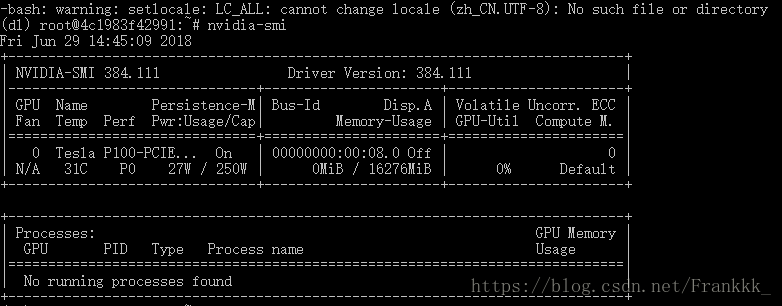
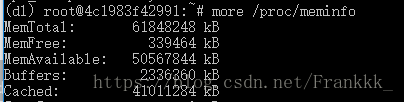
Here’s the configuration of my machine: Tesla P100 GPU, priced over 50,000 on JD.com…
4-core 8-thread Xeon E5
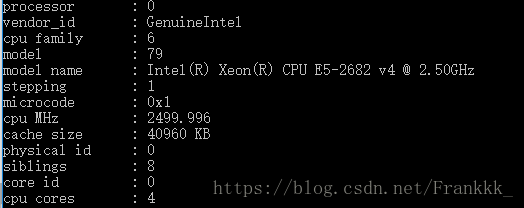
60GB of memory
Note that after shutting down the server, data in the /input and /output directories will be cleared. Before shutting down, make sure to transfer any necessary data to the /data directory to ensure it is preserved.